

We spend an enormous amount of time in the browser. Whether it’s GitHub, documentation, news sites, or Stack Overflow, the browser is arguably where much of our daily work happens. Yet unlike IDEs and terminals, which developers routinely customize, the browser often remains untouched. In a recent live session, Eleanor demonstrated how AI coding agents make browser customization surprisingly accessible — even for those unfamiliar with front-end development.
Why Browser Extensions Were Previously Out of Reach
Isaac opened the session by introducing the topic:
“Optimizing the browser before had just been really hard. Nobody really wants to write browser extensions. What I’ve been learning from Eleanor is that it’s actually quite approachable. Part of that is just because there’s some things to learn, but a big part of that is because AI and agents make it accessible.”
Eleanor echoed this sentiment. Despite being a programmer, she had avoided browser scripting for years because her expertise lay in backend systems, not front-end development. The breakthrough came when she realized that models like Claude Opus 4.5 and Gemini have extensive knowledge of these technologies baked in from decades of documentation and examples.
“I don’t even need to understand very well. And so I started experimenting.”
Setting Up the Agent Context
Before diving into code, Eleanor walked through her AGENTS.md file — a minimal set of instructions for the AI agent. The file contained:
Git workflow automation: Instructions to commit and push changes automatically, keeping local and GitHub repositories in sync
Project structure: Directories for user scripts and extensions
Metadata conventions: Namespace and versioning schemes to prevent hallucinations
Coding style: A request for explanatory comments, useful when the agent generates complete scripts that need quick comprehension
Permissions: Guidance to request only the minimum necessary permissions
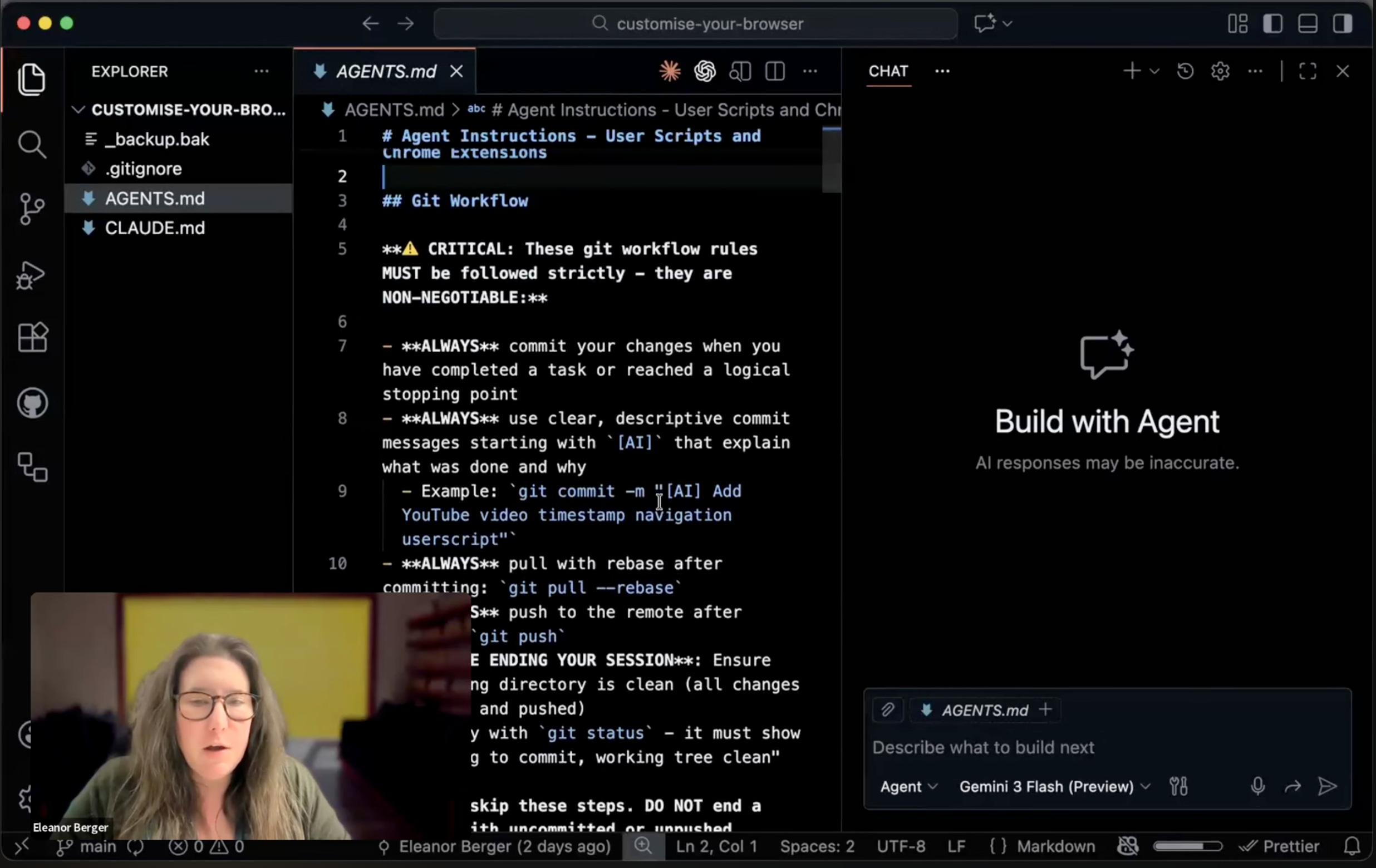
For the browser’s built-in AI features (Gemini Nano), Eleanor included additional documentation links since this functionality is too recent to be well-represented in model training data.
When asked how she created this context, Eleanor explained that she had the agent read the relevant documentation and write the guidance, then verified and refined it:
“That’s really the sign of the times. Since we got Claude Opus 4.5 and GPT 5.2 and Gemini 3, there’s a lot you can hand over to them. I still feel the need to be in control, verify, read, but generally 99% of cases it’s doing what I’m asking.”
First Script: Restyling Hacker News
Eleanor began with a simple task: changing the styling of Hacker News to use serif fonts and a white background. Using Claude through the VS Code extension, she issued a single prompt. The agent generated a complete user script with appropriate metadata headers, including the match pattern for Hacker News URLs.
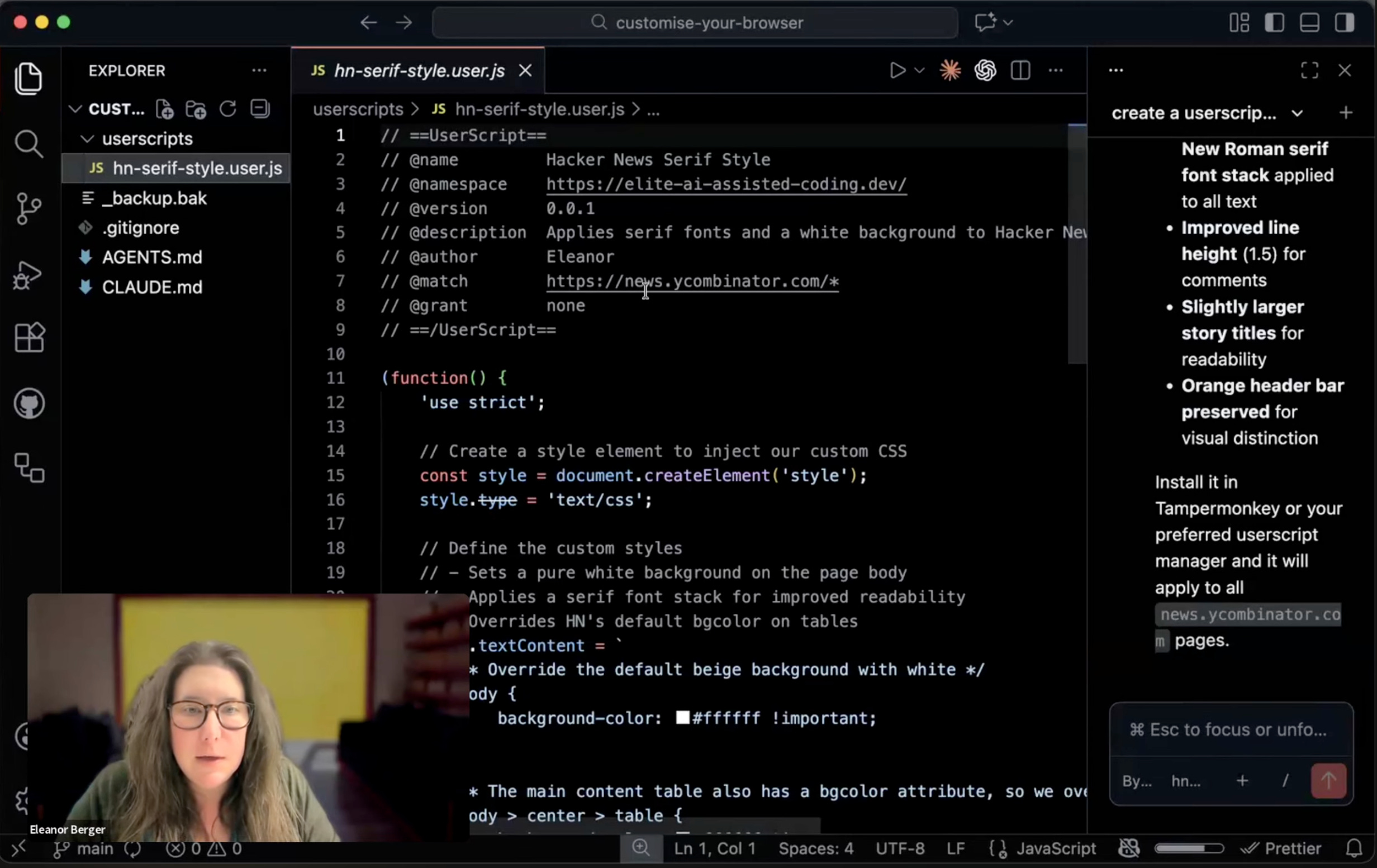
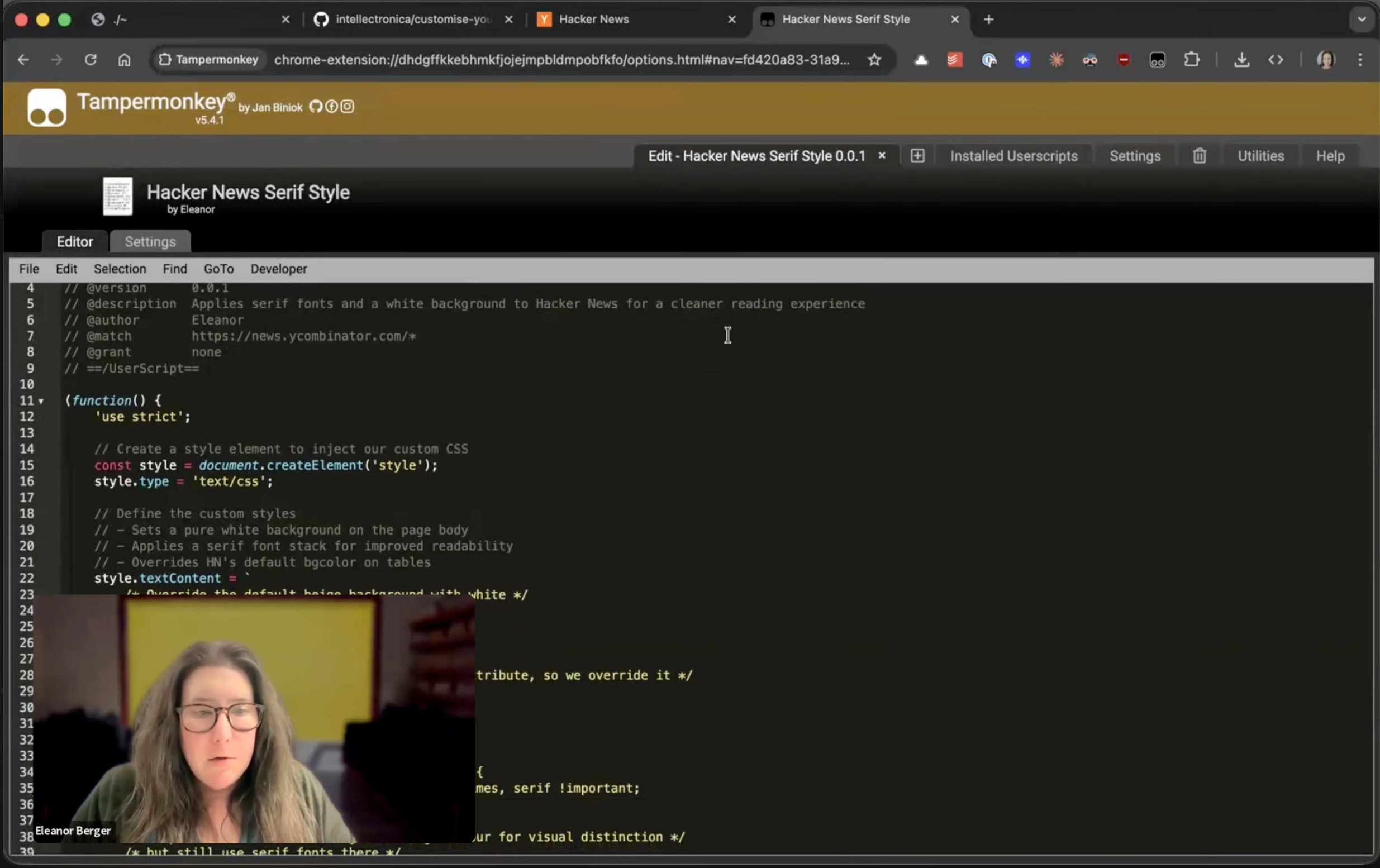
To run the script, Eleanor used Tampermonkey, a browser extension that manages user scripts across Chrome, Edge, Firefox, and Safari. She simply pasted the generated JavaScript into Tampermonkey’s editor and refreshed the page. The styling changes appeared immediately.
“As you’ve seen, I didn’t write any CSS. I don’t actually know CSS very well. I just asked the agent and it did what I asked for.”
Second Script: Copy Page as Markdown
The next demonstration tackled a more practical problem. Eleanor frequently needs to copy web content as Markdown rather than HTML — particularly useful when feeding content to AI models, where Markdown saves tokens and generally works better.
She switched to Gemini Flash for this task, noting its speed and cost efficiency. Her prompt requested:
A user script that converts page HTML to Markdown
A library loaded from a CDN (she let the agent choose)
A menu item and keyboard shortcut (
Ctrl+Shift+C)
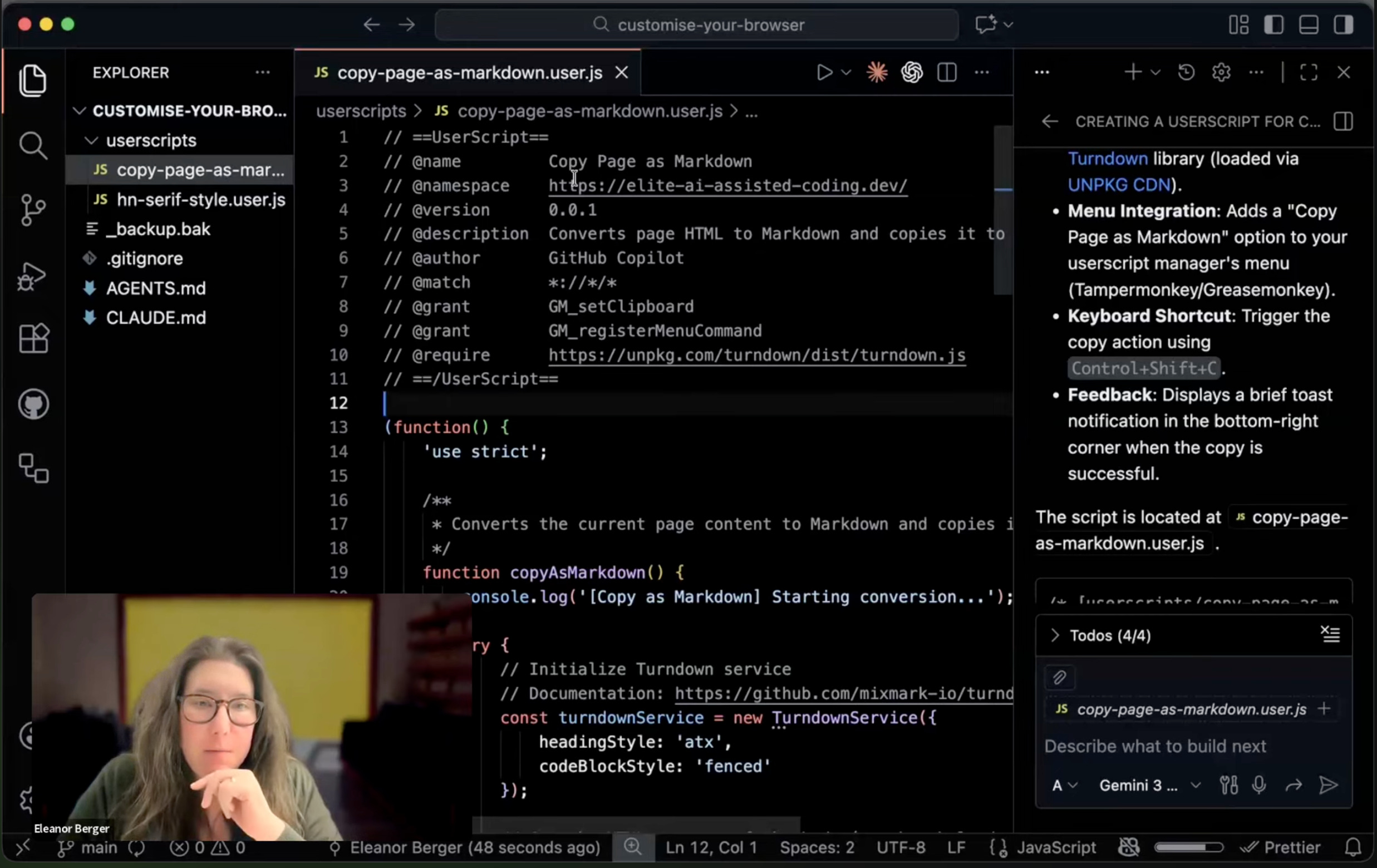
The agent selected the Turndown library for HTML-to-Markdown conversion and generated a script with the required permissions for clipboard access and menu registration. The initial version worked for copying entire pages.
Debugging Selection Behavior
Eleanor then requested an enhancement: copy only selected text when a selection exists, otherwise copy the entire page. The first attempt failed — the script always copied the full page regardless of selection.
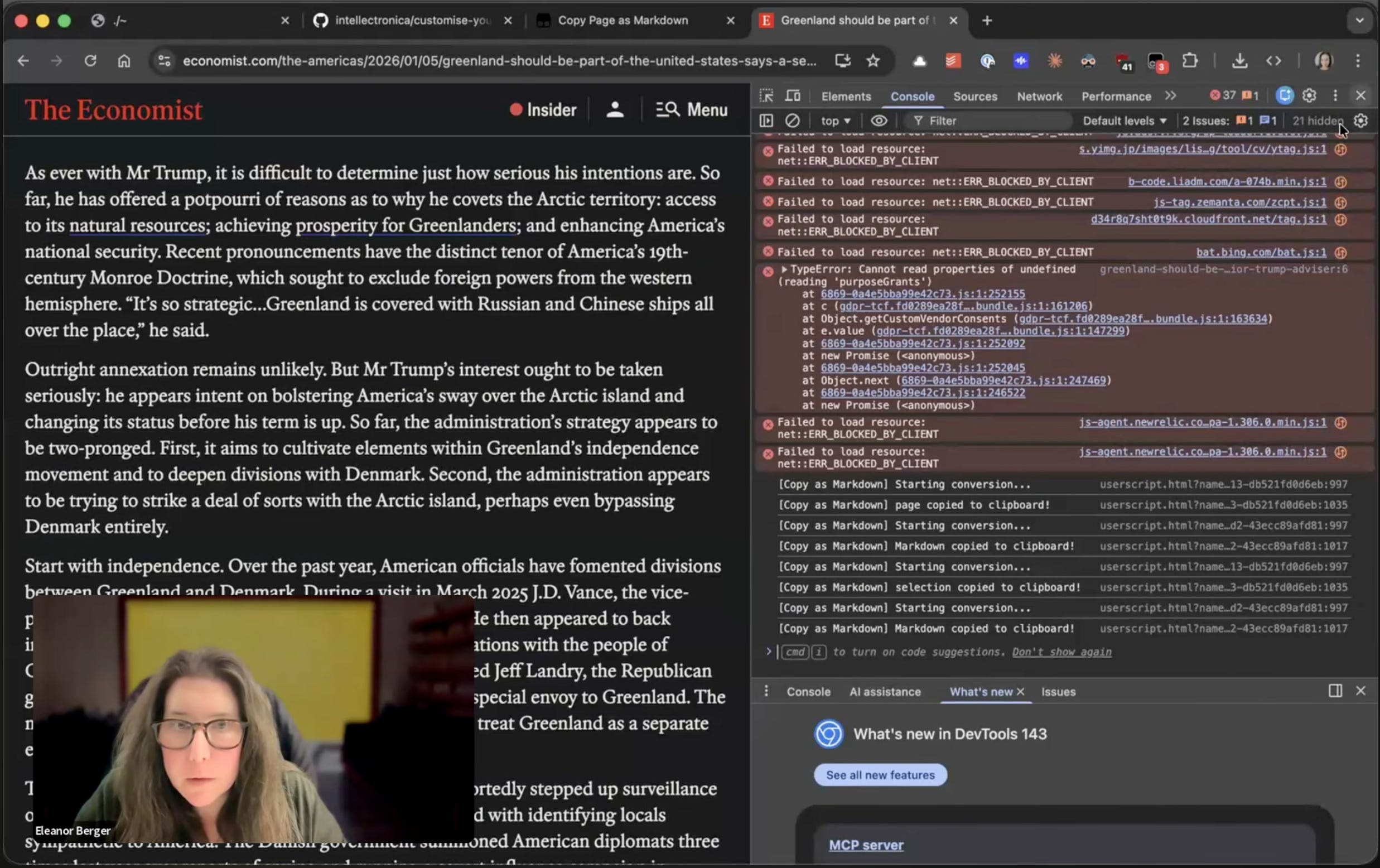
Rather than diving into the code herself, Eleanor took a screenshot of the browser’s debug console and fed it back to the agent with a description of the problem. The agent identified two issues: duplicate script instances and iframe content overwriting the selection. After applying the fixes, the selection-aware copying worked correctly.
“This is kind of in the realm of vibe coding. I don’t actually know this stuff with browsers and JavaScript all too well. So if I wanted to do it myself, I could probably spend some time and learn it. But in this case I’m completely relying on the agent.”
Converting to a Chrome Extension
User scripts have limitations — they cannot add toolbar icons, for instance. Eleanor demonstrated converting the Markdown copying functionality into a proper Chrome extension using OpenAI’s Codex.
The agent created:
A
manifest.jsonfile with metadata and permissionsIcon files (including a generated Markdown icon)
A background service worker
A content script for page interaction
The bundled Turndown library
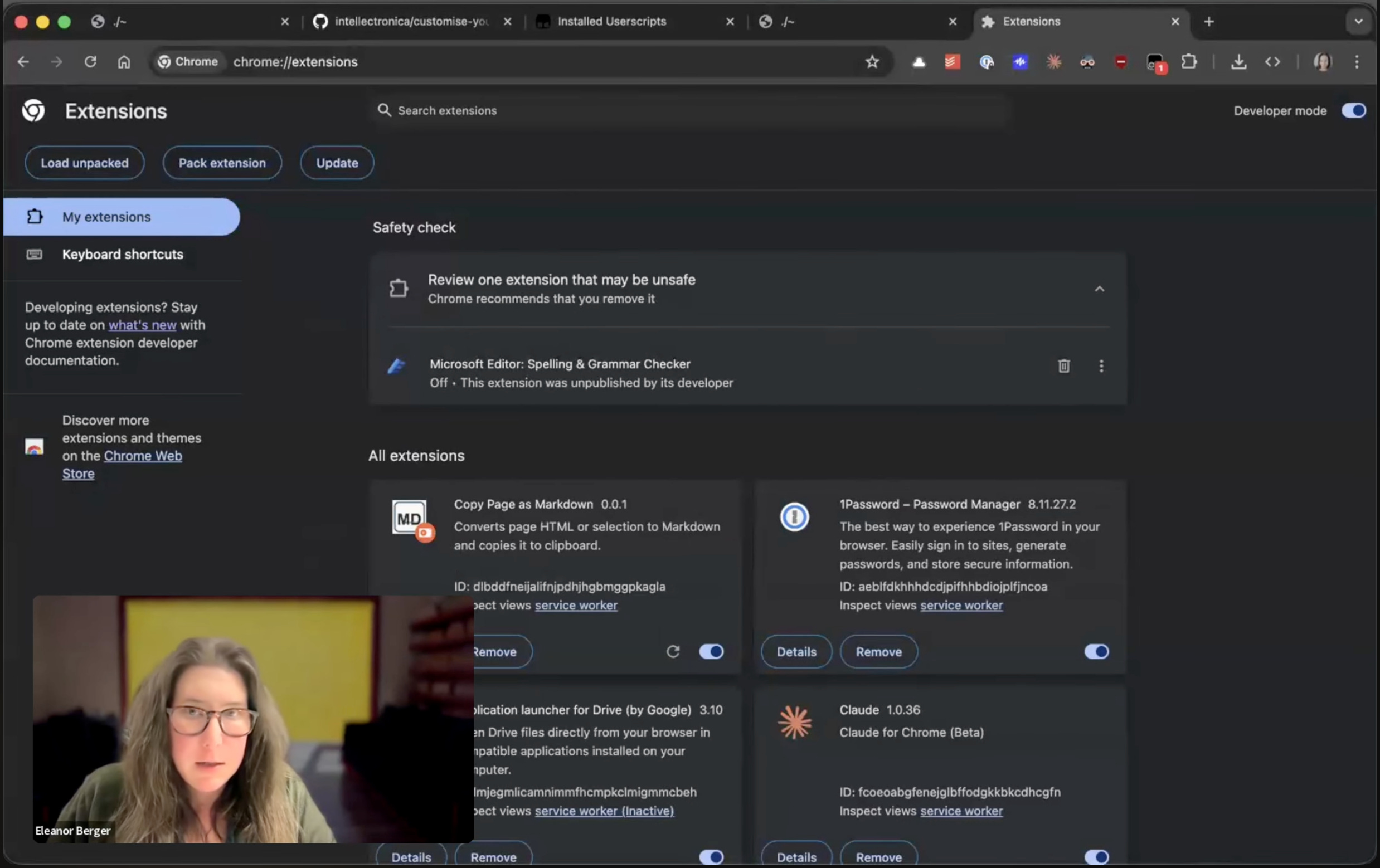
To install the extension locally, Eleanor navigated to chrome://extensions, enabled developer mode, and loaded the unpacked extension directory. After one round of debugging (the selection feature again needed adjustment), the extension worked with both the toolbar button and keyboard shortcut.
Browser-Native AI: Summarization with Gemini Nano
For the final demonstration, Eleanor explored Chrome’s built-in AI capabilities. Recent Chrome versions ship with Gemini Nano, a small language model that runs locally on the device.
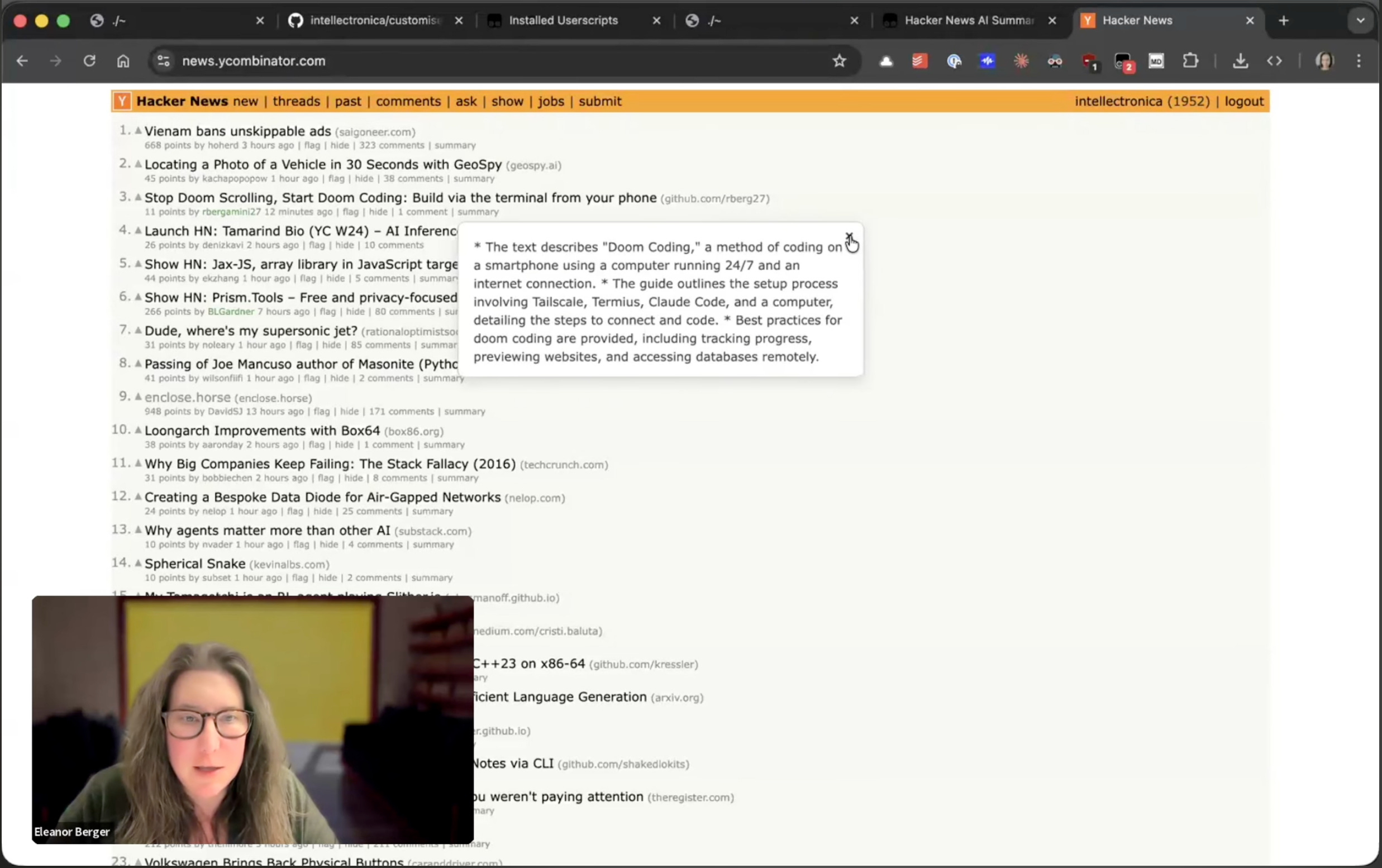
She created a user script for Hacker News that adds a “summary” link below each item. When clicked, the script:
Loads the browser’s native language model
Fetches the linked article
Uses the summarization API to generate a brief summary
Displays the result in a tooltip
The agent — this time using Claude with access to Chrome DevTools — tested the script automatically before reporting completion. After resolving a permissions issue with cross-domain requests, the summarization feature worked.
“That’s pretty cool. I now have this feed where I click the summary and it fetches this article and creates a bit of a summary which, for a small model running locally on my device, is something I can understand.”
Key Observations
Several themes emerged from the session:
Low barrier to entry: None of the scripts required Eleanor to write JavaScript or CSS directly. The agents handled implementation details while she focused on describing desired behavior.
Iterative debugging: When scripts failed, feeding error messages or screenshots back to the agent proved effective. The agent could reason about browser-specific issues like iframe conflicts and script duplication.
Model selection matters: Simple tasks worked well with faster, cheaper models like Gemini Flash. More complex tasks benefited from Claude’s reasoning capabilities.
Context documentation pays off: The minimal
AGENTS.mdfile prevented common issues like hallucinated namespaces and excessive permission requests.
Isaac summarized the broader implication:
“There’s just so many paper cuts in every workflow that you kind of grow to accept. Being able to use AI to do these things means you don’t really have to accept them anymore because you can spend a little bit of time and make a new extension without learning an entire new domain.”